
Turn Off Comments on Facebook Posts
You posted something, walked away for an hour, and came back to 40 notifications and a comment section that turned into a small war.
We’ve all been there. The good news: Facebook lets you shut comments off entirely, before or after you post. It takes about 10 seconds.
Quick Answer: How to Turn Off Facebook Comments
For a NEW post:
- Create your post
- Click the audience selector
- Click “More Options”
- Select “Turn off commenting”
- Post normally
For EXISTING posts:
- Click the three dots (…) on your post
- Select “Turn off commenting” or “Edit Privacy”
- Choose to disable comments
- Save changes
That’s the whole thing. The rest of this guide covers the edge cases: Pages vs profiles, mobile vs desktop, and when you should filter comments instead of killing them.
Turning Off Comments Before You Post
The cleaner option is to disable comments before the post ever goes live. No comment section means no scramble to clean one up later.
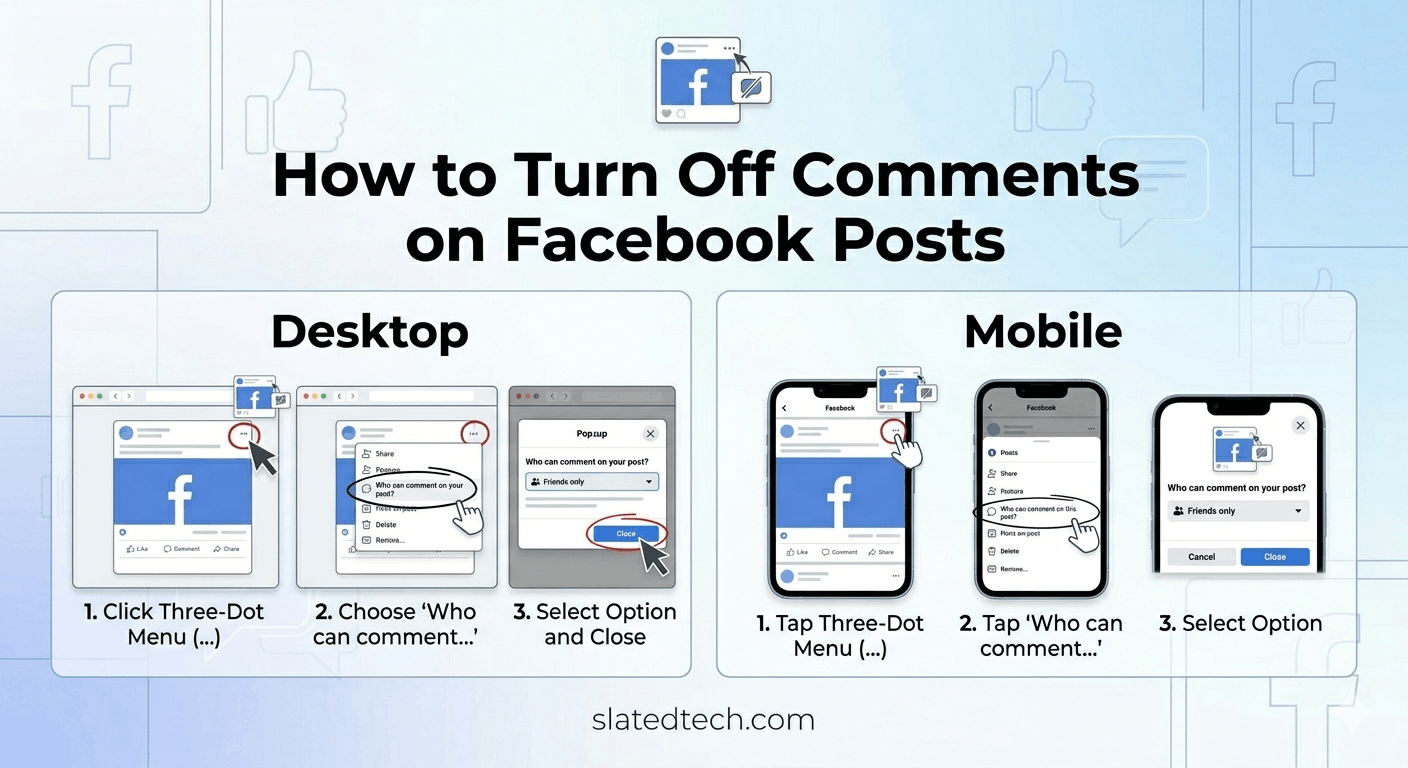
On desktop, write your post like normal. Before you hit Post, click the three dots near the Post button. Look for “Turn off commenting.” Click it, then publish.
On mobile, it’s the same idea with a different door. Tap “Advanced settings” (sometimes labeled differently depending on your app version), find the comment toggle, and switch it off.
One thing worth knowing: if you don’t see a clean “off” switch, you can fake it. Set your audience so only tagged profiles can comment, then tag nobody. The comment section is technically open but empty. It’s a workaround, not a real off switch, so use the proper toggle when it’s there.
Turning Off Comments on a Post You Already Published
This is the situation most people actually land in. The post is live, the comments are messy, and you want it to stop.
Find the post on your profile, Page, or group. Tap or click the three dots in the top right corner, next to the timestamp. A dropdown opens. Select “Turn off commenting.”
Here’s what happens next. New comments get blocked immediately. Existing comments stay visible. You can reverse the whole thing anytime by going back to the same menu and turning commenting back on.
So if your real problem is one specific nasty comment, turning off commenting won’t delete it. You’ll want to hide or delete that comment separately, then decide if you still need the section closed.
Desktop vs Mobile: What’s Different
Desktop vs Mobile
The controls live in slightly different places depending on where you’re posting from. The function is identical. The menu labels are not.
| Action | Desktop | Mobile App |
| New post, disable comments | Three dots near “Post” button | “Advanced settings” before posting |
| Existing post | Three dots, top-right of post | Three dots, top-right of post |
| Re-enable comments | Same three-dot menu | Same three-dot menu |
| Menu wording | “Turn off commenting” | “Turn off commenting” |
If the wording on your screen doesn’t match exactly, you’re probably on a slightly older or newer app build. Facebook ships small changes constantly. The three-dot menu is your reliable anchor either way.
Profiles, Pages, and Groups Each Behave Differently
Comment controls aren’t one feature. They’re three, and they don’t work the same way.
Personal profile. You control comments post by post. There’s no global setting that kills comments on everything you share. You toggle each one.
Facebook Page. You need an admin or editor role to change anything. Pages also give you more tools: a profanity filter, keyword blocking, and the option to limit comments to verified followers. If you run a Page, learn these. They’re more useful than a blanket off switch.
Groups. Admins and moderators have the most power here. You can pause comments on a single post, require post approval, or filter by keyword. Group announcement posts are the obvious candidate for locking down.
Also Read: Facebook Clipboard Guide: Where to Find and Use Facebook Clipboard
When You Should Filter Instead of Turning Comments Off
Killing comments isn’t always the right move. A post with zero comments gets less reach than one with healthy engagement. The Facebook algorithm reads comments as a signal that people care.
So before you shut the whole section, ask what you’re actually trying to stop.
| Your Problem | Better Fix Than “Off” |
| Spam links | Keyword filter (Pages) |
| Profanity and slurs | Built-in profanity filter |
| One troll | Block that user |
| Off-topic chaos | Pin a comment setting expectations |
| Sensitive or legal post | Turn comments fully off |
| Memorial post | Turn comments fully off |
For most everyday annoyances, filtering keeps your reach intact and still cuts the noise. Save the full shutdown for posts where any public reply is a genuine risk, like legal announcements, product recalls, or anything personal you don’t want debated.
A Few Honest Caveats
Turning off commenting doesn’t stop people from sharing your post and commenting on their own share. You’ve closed your section, not theirs.
It also doesn’t retroactively clean anything. Old comments sit there until you remove them yourself.
And the setting is per-post. There’s no “never let anyone comment on anything” button for a personal profile. If that’s what you want, you’re really asking a different question about your overall privacy settings.
Also Read: Can People See When You Save Their Facebook Photos?
FAQ
Can I turn off comments on a Facebook post after posting it?
Yes. Open the post, click the three dots in the top-right corner, and select “Turn off commenting.” It works on profile posts, Page posts, and group posts.
Will turning off comments delete the existing ones?
No. Existing comments stay visible. The setting only blocks new comments. To remove old ones, hide or delete them individually.
Does turning off comments hurt my reach?
It can. Comments are an engagement signal for the algorithm, so a closed post may get shown to fewer people. If reach matters, filter comments instead of disabling them.
Can I turn comments back on later?
Yes, anytime. Go back to the same three-dot menu and select “Turn on commenting.” The change is fully reversible.
Why don’t I see the “Turn off commenting” option?
You might be on an older or newer app version with different labels, or you may lack admin rights on a Page. As a workaround on a personal post, set the audience so only tagged people can comment, then tag no one.
Can I turn off comments on scheduled posts?
Yes. Set the comment preference while scheduling, or edit the post once it publishes using the three-dot menu.
COMMENTS