
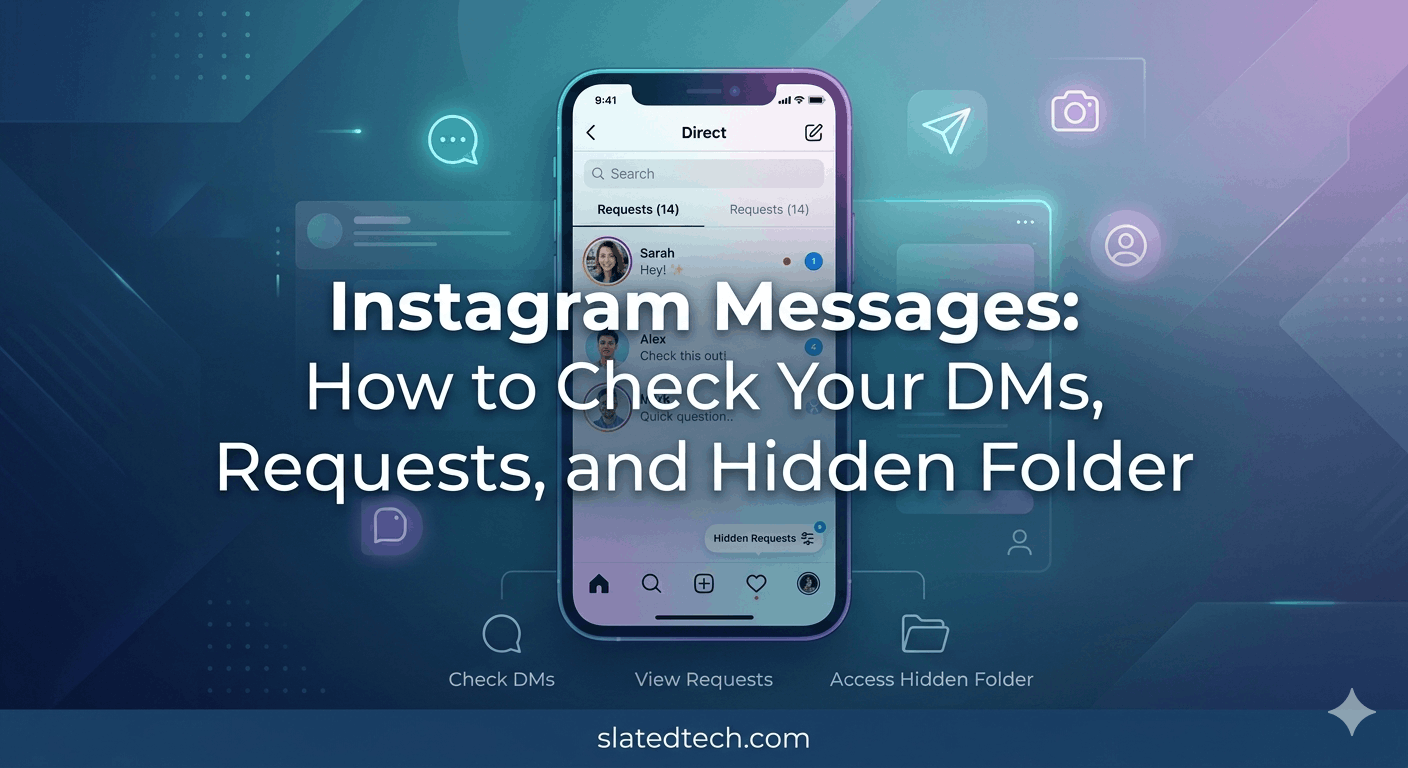
Instagram Messages
Quick answer: Open the Instagram app and tap the messenger icon (the paper airplane ✈️) in the top right corner. That’s your inbox. To see messages from people you don’t follow, tap Requests at the top of your inbox, then check both the Primary and General tabs.
That covers most people. But Instagram tucks messages away in three or four different spots, and if you only ever look at your main inbox, you’re missing some. Here’s where everything lives.
Your main inbox (the DMs)
This is the easy one. Open Instagram, look at the top right of your home feed, and tap the paper airplane. Every message thread you’ve got with people you follow shows up here, newest at the top.
The number badge on the airplane icon tells you how many unread chats are waiting. No badge means you’re caught up.
On a desktop browser it works the same way. Go to instagram.com, click the messenger icon, and your conversations open in a side panel.
Message requests (the part people forget)
When someone you don’t follow sends you a DM, Instagram doesn’t drop it into your main inbox. It holds it in a separate folder so strangers can’t ping your notifications all day.
To find it: open your inbox and tap Requests at the top.
Inside Requests you’ll see two tabs:
- Primary ✅ — requests from accounts Instagram thinks are probably real people you might want to hear from.
- General — everything else. Promotional stuff, bots, accounts with no profile photo, that sort of thing.
Check both. I’ve found genuine messages buried in General more than once, usually from someone who made a new account or whose profile looked sketchy to the algorithm.
When you tap a request, you get three choices: Accept, Delete, or Block. Accepting moves the chat into your normal inbox. Until you accept it, the sender can’t tell whether you’ve read their message, which is handy if you want to read first and decide later.
Also Read: How to save stories on Instagram in 2026
Hidden message requests (the folder almost nobody opens)
There’s one more layer, and it’s the one people mean when they say “hidden messages.”
Instagram filters certain requests out of the regular Requests folder entirely. These are messages flagged as spam, or ones containing words you’ve added to your hidden words list, or content Instagram’s filters consider offensive.
Here’s how to get to it:
- Open your inbox and tap Requests.
- Scroll to the bottom.
- Tap You’ve received X hidden requests (it sits right under your visible requests).
That folder is where the genuinely weird stuff ends up. Spam, yes. But occasionally a real message gets caught by an over-eager filter, so it’s worth a glance every few weeks.
You can also widen or narrow this filter. Go to your profile, tap the menu (☰), then Settings and privacy → Hidden Words. From there you control which message requests get auto-hidden. ⚙️
Where Instagram hides your messages: a quick map
| Location | What’s There | How to Find It |
|---|---|---|
| Main Inbox (DMs) | Conversations with people you follow or have accepted | Tap the messenger/DM icon (top-right of Home feed) or swipe left from the feed |
| Message Requests | Messages from people you don’t follow, waiting for you to accept or decline | Open your inbox, then tap Requests near the top of the message list |
| Hidden Requests | Messages flagged as potentially offensive or containing filtered words | Go to inbox → Requests → tap Hidden Requests at the bottom |
| General Folder | Lower-priority requests, often from accounts with little connection to you | Inside the Requests screen; appears as a separate tab/section when you have such messages |
| Archived / Hidden Chats | Conversations you’ve manually hidden or locked away | Inbox → tap the menu (≡ or your profile) → look for Archived or use the chat lock feature if enabled |
| Spam / Filtered | Messages auto-flagged as spam | Inbox → Requests → check for a Spam label or folder |
| Vanish Mode Messages | Temporary messages that disappear after viewing | Inside an open chat, swipe up to enter Vanish Mode; messages aren’t saved once you leave |
That last row matters. Instagram lets you archive posts and stories, but there’s no archive folder for DMs. ❌ If a conversation vanished, it was either deleted by you, deleted by the other person, or the account was disabled. It didn’t get “archived.”
A few things worth knowing
Vanish mode. Swipe up inside any chat and you turn on vanish mode. Messages sent this way disappear once they’re seen and you both leave the chat. They won’t sit in your inbox waiting. If a message “disappeared,” vanish mode is the usual culprit.
Read receipts. Once you open an accepted DM, the sender sees “Seen.” Message requests are the exception, reading those stays private until you accept.
Restricted accounts. If you’ve restricted someone, their messages land quietly in your requests instead of your main inbox, and they can’t see when you’re online or whether you’ve read their text.
Desktop limits. The web version handles most messaging fine now, but a few features like vanish mode work better on the phone app.
Also Read: Funny Instagram Comments: 250+ Ideas That Actually Get Replies
FAQs
Where do messages from people I don’t follow go?
Into your Requests folder. Open your inbox, tap Requests, and check the Primary and General tabs.
How do I see hidden messages on Instagram?
Open your inbox, tap Requests, then scroll to the very bottom and tap “You’ve received X hidden requests.” That’s the spam-and-filtered folder.
Can someone tell I read their message request?
No. A message request stays unread on their end until you accept it. Read it as many times as you like first. ✅
Why did a conversation disappear from my inbox?
Three likely reasons: you or the other person deleted the chat, the other account got disabled or deactivated, or the messages were sent in vanish mode and vanished after being seen.
Does Instagram have an archive for DMs?
No. ❌ You can archive posts and stories, but not direct messages. A missing chat was deleted, not archived.
Can I check Instagram DMs on a computer?
Yes. Go to instagram.com, sign in, and click the messenger icon. Requests and hidden requests show up there too.
How do I stop messages from getting hidden?
Go to Settings and privacy → Hidden Words and adjust which message requests get filtered. You can loosen the filter or add your own blocked terms. ⚙️
COMMENTS